




Watching soccer matches with a small data bundle

The 2026 Soccer World Cup promises to be a huge tournament. Because of the time difference with the US, Canada and Mexico, many matches are played late in the evening or in the middle of the night in the Netherlands. Do you want to stream matches live on your phone? Then you risk running out of data quickly. This article shows how to catch every match without surprise costs.
Watching the World Cup with a small plan
Save data by lowering the video quality, turning off autoplay, and watching via Wi-Fi as much as possible. Are you traveling to the host cities in North America? Check our page for Buitenlandbundels . These are available for the US and Canada. For other countries outside the US and Canada, keep international roaming rates in mind.
|
Setting |
Effect |
Useful when |
|
Lower video quality |
Up to 70% less data usage |
Watching live via mobile data |
|
Autoplay off |
No unwanted streams |
Using social media and apps like the NOS app |
|
Data saver on |
Apps use less data |
All day, automatically |
|
Wi-Fi only for downloads |
No mobile data for updates |
Always |
|
Live updates or audio |
Much less data than video |
On the go or plan almost empty |
How much data does watching a World Cup match cost?
A livestream of a full World Cup match easily uses 1 to 3 GB on your phone. But this does depend on the video quality. In standard quality (480p or 720p), you use about 1 GB of data per hour. In Full HD, this goes up to 3 GB per hour. And in 4K, it can cost you up to 7 GB per hour. More details are in our blog about watching TV over mobile data .
A match lasts at least 90 minutes plus halftime, so count on:
- Low quality (480p): about 1.5 GB
- Standard HD (720p): about 2 GB
- Full HD (1080p): about 3 to 4 GB
- 4K Ultra HD: about 7 to 10 GB
With a 5 GB plan, you'll have burned through most of your data after one Full HD match. With a smaller plan, every setting makes a difference.
Settings to save data
A few settings on your phone and in apps significantly lower your data usage. You barely notice it while watching, but it saves you many megabytes.
- Lower the video quality in apps like NPO Start, YouTube, or social media apps
- Turn off autoplay so videos only start when you tap on them
- Turn on data saver for less usage during the day
- Limit background data for apps you don't need
- Download highlights via Wi-Fi instead of streaming them via 4G or 5G
- Use live updates or audio if you've almost run out of data
Lowering video quality while streaming
Lower video quality is the fastest way to save data during a match. On a phone screen, you barely notice the difference between 720p and 1080p anyway, while your data usage is cut in half.
In most streaming apps, you adjust the quality like this:
- NPO Start: tap the gear icon while watching and choose a lower quality
- YouTube: tap the 3 dots in the top right and adjust the quality
- Social media apps (TikTok, Instagram, Facebook): look for 'data usage' or 'video quality' in the app's settings.
Tip: set the default quality for mobile streaming to low and only to high for Wi-Fi. You'll automatically switch back to low quality when you leave the network.
Limiting autoplay and downloads
Autoplay can quickly devour a lot of data. Especially on social media, one video automatically starts playing after another by itself.
What you can do:
- Turn off autoplay in social media apps like Instagram, TikTok, and Facebook
- Disable automatic downloads for podcasts, highlights, and updates
- Set app updates to Wi-Fi only in the App Store or Google Play
- Set automatic photo backup to Wi-Fi only in iCloud or Google Photos
Especially the last 2 make a big difference, as updates and backups often run in the background.
Turning on data saver on iPhone and Android
Data saver is a separate setting that limits the usage of apps in the background. You barely notice that it's on, except that some videos load a bit slower.
On an iPhone:
- Open the Settings app
- Tap 'Cellular'
- Tap 'Cellular Data Options'
- Choose 'Data Mode' and set it to 'Low Data Mode'
On an Android phone:
- Open the Settings app
- Search for 'Mobile network' or 'Connections'
- Tap 'Data saver' or 'Low data mode'
- Turn the switch on
The exact path differs per brand: on Samsung phones , it's under 'Connections' and on Google Pixels under 'Network and internet'. You can make exceptions for important apps, like navigation. You can also download maps in navigation apps for offline use.
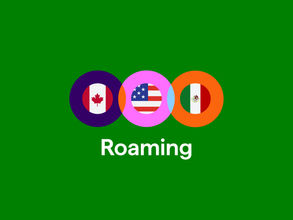
Watching the World Cup in the US, Canada, or Mexico: watch out for roaming
Are you traveling to one of the host cities? Then keep international roaming rates in mind. The US, Canada, and Mexico fall outside the EU and outside Zone 1. At Simyo, you pay € 5 per MB in those regions.
What you can do:
- Turn off mobile data/data roaming in your phone settings
- Use Wi-Fi networks in your hotel or cafe for live streaming
- Buy a Buitenlandbundel for the US or Canada, so you pay a fixed amount for data during your trip. Buitenlandbundels are not available for Mexico.
- Follow live updates via text instead of streaming, that uses almost no data
- Watch highlights on NPO Start when you are back on Wi-Fi
Watching a livestream while you're roaming internationally can quickly cost you tens of euros in just a few minutes. So plan ahead before you leave.
Check our roaming page for all the rates.
Alternatives to watching live with little data
Do you have a small data plan, or are you traveling abroad? Some alternatives use way less data than a livestream.
- Live updates via text: NU.nl , the NOS app, or a sports app give you real-time updates of goals and cards. Usage: almost nothing.
- Audio commentary via radio: NPO Radio 1 broadcasts many World Cup matches with live commentary. Listening to the radio for an hour costs about 30 to 60 MB. Note: 30 to 60 MB outside Zone 1 can still cost a lot.
- Highlights afterward on Wi-Fi: download the highlights via NPO Start as soon as you are on Wi-Fi and watch them offline.
- Turn on push notifications in the NOS app for goals and results, so you don't need to keep the app open.
Which setting should you choose?
The right choice depends on where you are and how much data you have left.
- Stable connection with Wi-Fi? Watch the match in HD quality without any worries
- On the go with enough data? Set the video quality to standard (720p) for live matches
- Plan almost empty? Follow live updates via text or listen to NPO Radio 1
- In the US, Canada, or Mexico? Turn off data roaming, only use Wi-Fi, or buy a local data plan
- Not sure? Turn on data saver and check your usage in the Mijn Simyo app
Good to know: all 104 matches of the 2026 World Cup can be watched for free via the NOS on NPO 1, NPO 2, NPO 3, and NPO Start. You don't need an extra subscription to follow the matches of the Dutch team or the final.
Questions? We've got answers
How do I watch the World Cup with a small data plan?
How do I watch the World Cup with a small data plan?
Lower the video quality, turn off autoplay, and watch as much as possible via Wi-Fi. On the NPO Start app, you adjust the quality via the gear icon while watching.
How much data does watching a World Cup match on your phone cost?
How much data does watching a World Cup match on your phone cost?
A full match in standard quality (720p) costs about 2 GB. In Full HD, that increases to 3 or 4 GB, and in 4K, it can add up to 10 GB. In lower quality (480p), it will cost you around 1.5 GB.
Which settings save data while watching the World Cup?
Which settings save data while watching the World Cup?
Lower the video quality in the streaming app, turn off autoplay on social media, disable background data for apps you do not use, and turn on data saver in your phone settings.
How do you turn on data saver on an iPhone or Android?
How do you turn on data saver on an iPhone or Android?
On an iPhone:
- Go to your settings
- Go to 'Cellular'
- After that, go to 'Cellular Data Options'
- Set 'Data Mode' to 'Low Data Mode'.
On Android:
- Search in the settings for 'Data saver' or 'Low data mode'
- Turn the switch on
The exact path differs per brand
Can you watch a World Cup match without Wi-Fi?
Can you watch a World Cup match without Wi-Fi?
Yes, via the NPO Start app or stream it in your browser. It does cost a lot of mobile data, so check your mobile plan beforehand and set the quality to low or standard.
What is better: streaming live or following live updates?
What is better: streaming live or following live updates?
Live updates via text cost almost no data and are a good alternative if your plan is small. Live streaming gives you the best experience, but costs much more data. If you have a small plan, live updates are more practical.
How do you prevent roaming costs during the 2026 World Cup?
How do you prevent roaming costs during the 2026 World Cup?
The US, Canada, and Mexico fall outside the EU and outside Zone 1 at Simyo. Turn off data roaming and use Wi-Fi in your hotel or cafe. For longer trips, a local eSIM card is often cheaper.
Which video quality uses the least data?
Which video quality uses the least data?
480p (low quality) uses the least, around 1 GB per hour. 720p (standard HD) is at about 1.5 GB per hour. On a phone screen, you barely notice the difference with Full HD, so 480p or 720p is often more than enough.
Is a small data plan enough for a full match?
Is a small data plan enough for a full match?
With 2 GB, you can watch one full match in standard quality. Do you want to follow multiple matches or watch more than just soccer on your phone? Then a larger plan is more practical. At Simyo, you can adjust your plan for free every month, both up and down.