



Transfer photos? Here’s how to do it from Android to iOS and vice versa

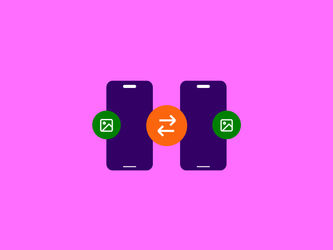
Are you switching from an iPhone to an Android phone (or the other way around) and worried you might lose all your photos? Don’t worry: you can easily transfer photos from, for example, a Samsung to an iPhone. With these steps, the transfer process will be done in no time.
Transferring photos to a new phone
Photos taken with your smartphone are stored either on the phone’s internal storage or on your Micro SD card. If your new phone has an SD slot as well, you only need to move the card from one device to the other to transfer pictures. If your new phone doesn’t support Micro SD, you’ll need to use other methods.
One option is to transfer photos to a new phone using a computer. With a USB cable, you first copy the photos to your computer, and from there, you can transfer them to your new device.
Want to transfer photos from a Samsung to an iPhone using Bluetooth ? That’s possible, but it requires a lot of patience. Even though Bluetooth has become much faster over the years, moving photos or videos in large quantities still takes a considerable amount of time. If your phone contains many files, there’s a simpler and faster way: transferring photos via the cloud .
What does transferring photos via the cloud mean?
When moving photos via the cloud, you upload your photos from your Android device or iOS device to a cloud service. The cloud is a private storage folder on the internet, accessible only to you.
The big advantage is that your photos become available on your new phone, while also being backed up in the cloud. In reality, you’re not transferring, but copying your pictures.
Once uploaded, you keep control of your files. If you want, you can later delete them from the cloud, leaving them only on your old and new phones. You can even reset your old phone to factory settings to remove them entirely.
Popular services include Google Photos, Dropbox, and iCloud Photos for iPhone-to-iPhone transfers. One tip: only upload and download when connected to Wi-Fi to avoid using mobile data from your plan.
Transfer photos from iPhone to Android
With the Google Photos app, you can easily transfer photos from Android to iOS and vice versa. This app works on both Android devices and Apple devices, using your Google account.
Don’t have one yet? You can create one for free. Once logged in, you can upload photos to Google Drive, Google’s cloud platform. In the app’s settings, you can decide in which quality to upload the files:
- In original quality or in storage saver mode: in original quality, you keep the exact file, but storage is limited to 15 GB.
- In storage saver: files are compressed, which takes up less space in Google Drive. Even so, photo quality remains very good.
Steps to choose your upload quality in Google Photos:
- Open Google Photos
- Tap the round icon with your profile picture in the top right corner
- Go to ‘Google Photos settings'
- Tap on ‘Backup'
- Tap on ‘'Backup quality' and choose your preference
Transfer photos from Android to Android
Moving photos from one Android phone to another also works via the Google Photos app. As explained above, the app handles the process automatically as long as Wi-Fi is connected and the app remains open.
Once the upload is complete, simply:
- Install Google Photos on your new device
- Log in with the same Google account, and all your photos will be accessible for download if needed. On most Android phones, Google Photos is pre-installed.
Transfer photos from Samsung to iPhone
Switching from Android to iOS? Besides Google Photos, you can also use the Move to iOS app to transfer pictures. This method works directly via Wi-Fi, skipping the cloud altogether. The photos are transferred straight from one phone to the other.
Both devices must be charged and connected to the same Wi-Fi network. On your Android phone:
- Enter the access code shown on your iPhone
- Choose which files to transfer, besides photos, this could include contacts or emails. The transfer process then completes automatically.
Transfer photos from iPhone to iPhone
Switching to another iOS device? Use iCloud Photos. This is Apple’s built-in service, linked to your Apple ID.
The drawback is that you only get 5 GB of free storage with iCloud. If that’s not enough, you can either use Google Photos as an alternative or temporarily purchase extra storage. For instance, 50 GB costs €0.99 per month. Once you’ve moved your photos, you can downgrade back to the free 5 GB.
Here’s how to transfer photos from iPhone to iPhone with iCloud:
- Open the ‘Settings' app on your old iPhone
- Tap your name at the top
- Tap ‘iCloud’
- Tap ‘Photos' and enable ‘Sync this iPhone'
- Go back and tap on ‘iCloud Backup'
- Tap ‘Back up now'
Your old iPhone will create a backup including all photos and upload it to iCloud. Once finished, set up your new iPhone, and the photos will automatically appear on your new device.
Capture top photos with your new phone
Want to expand your photo library with your new device? Whether you choose Android or iOS, our phone shop has phones with impressive camera setups. Planning a trip? These are perfect travel companions, especially when paired with handy translation apps .